
SAVE & LOAD
Uniamp.
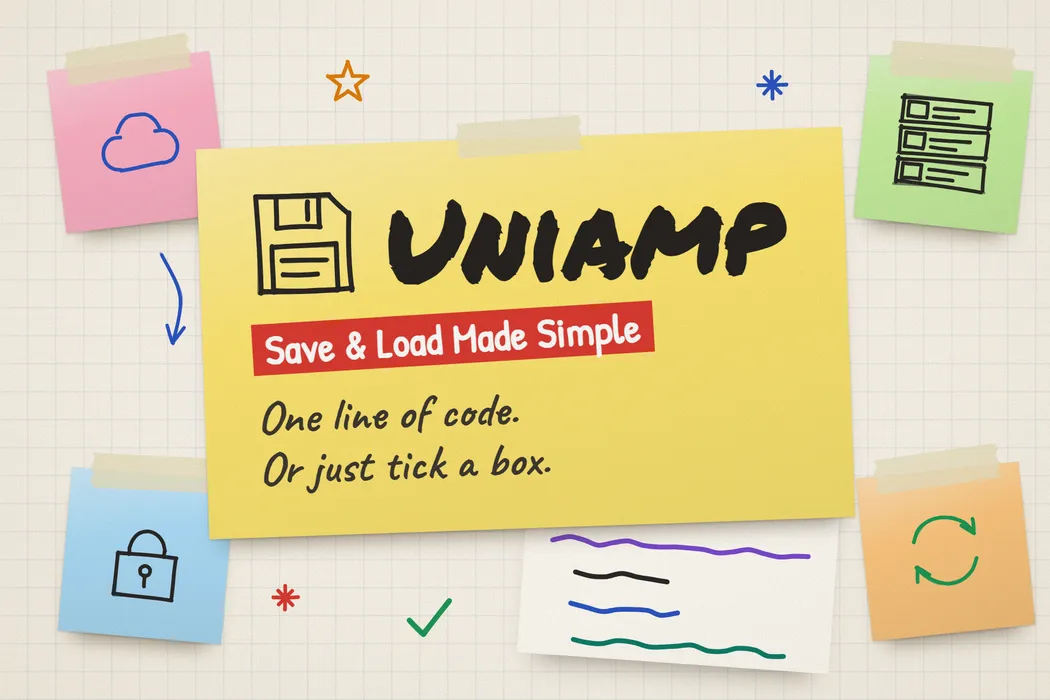
Save the game. Keep your flow.
Your players have progress worth keeping. Uniamp makes saving it straightforward, with a small API for game data and Auto Save components for scene objects. Start simple, with save slots, backups, and cloud options when you need them.
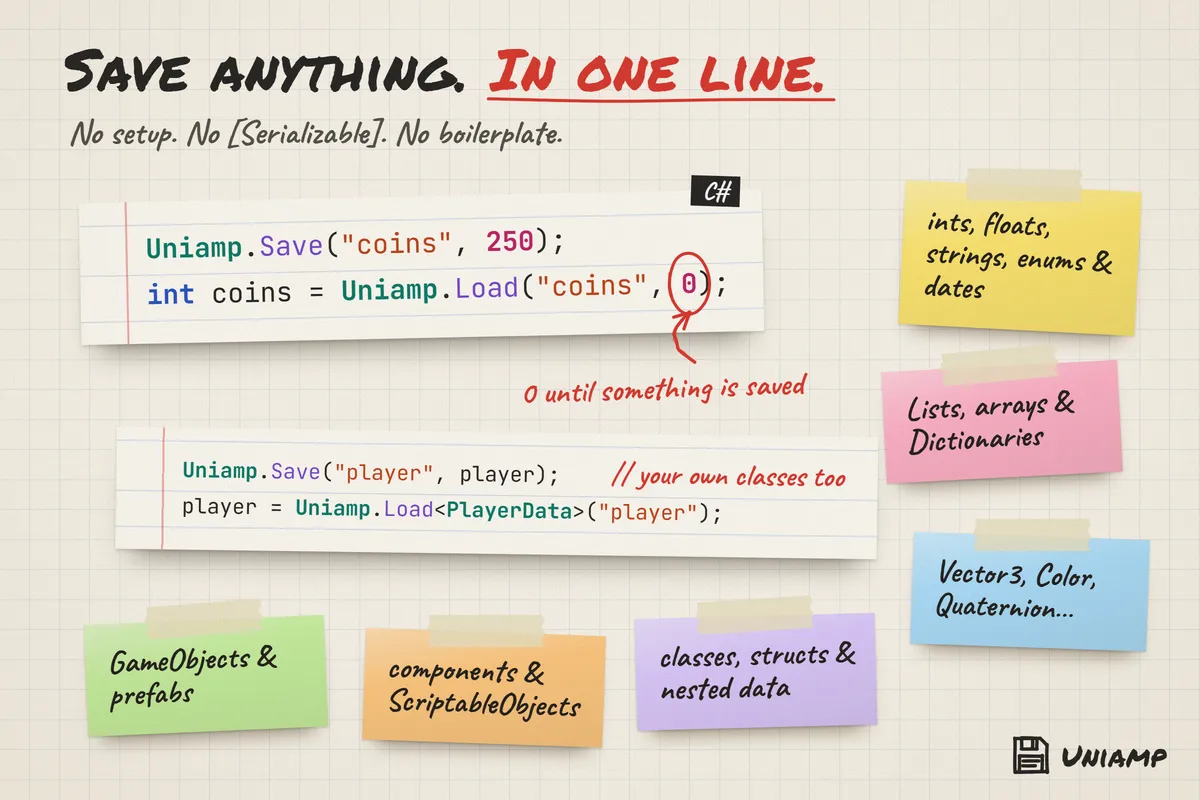
One line gets you started
Save values and game data with a small, readable API. Inspect your files in the editor’s Save Browser.
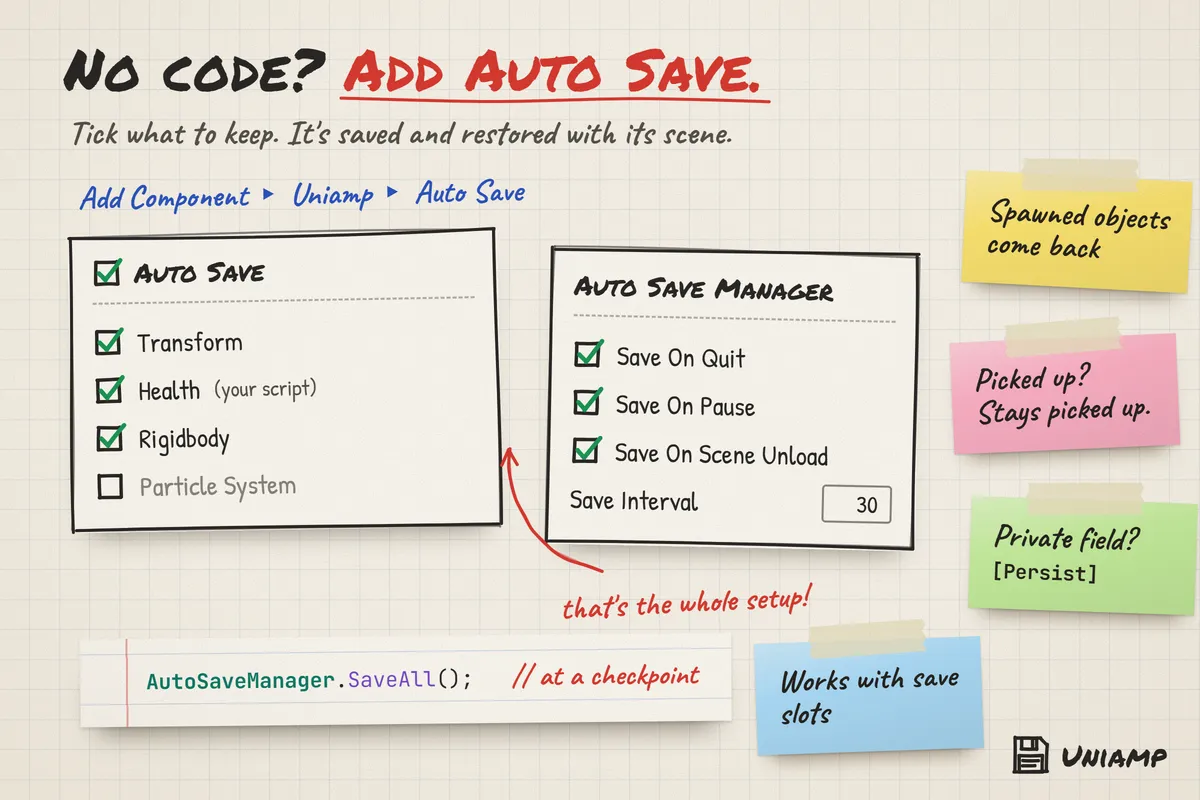
Or skip the code
Add Auto Save components to scene objects and configure your defaults in Project Settings.
Room to grow
JSON and binary formats, encryption, compression, backups, save slots, migrations, and optional cloud syncing.
FROM IDEA TO EDITOR
Get up and running.
Start here, then explore the complete documentation included with your package.
Before you import
Unity 6.0 or newer. Optional Unity Cloud Save and Visual Scripting integrations require their respective Unity packages.
- Import Uniamp into a Unity 6.0 or newer project.
- Call Uniamp.Save("coins", 250) and Uniamp.Load("coins", 0), or add an Auto Save component to a scene object.
- Open Edit → Project Settings → Uniamp to choose formats, encryption, and backups.
- Explore the demo scenes and open Tools → Uniamp → Documentation for the full manual.
Need a hand with Uniamp?
Tell us what you’re building and where you’re stuck.